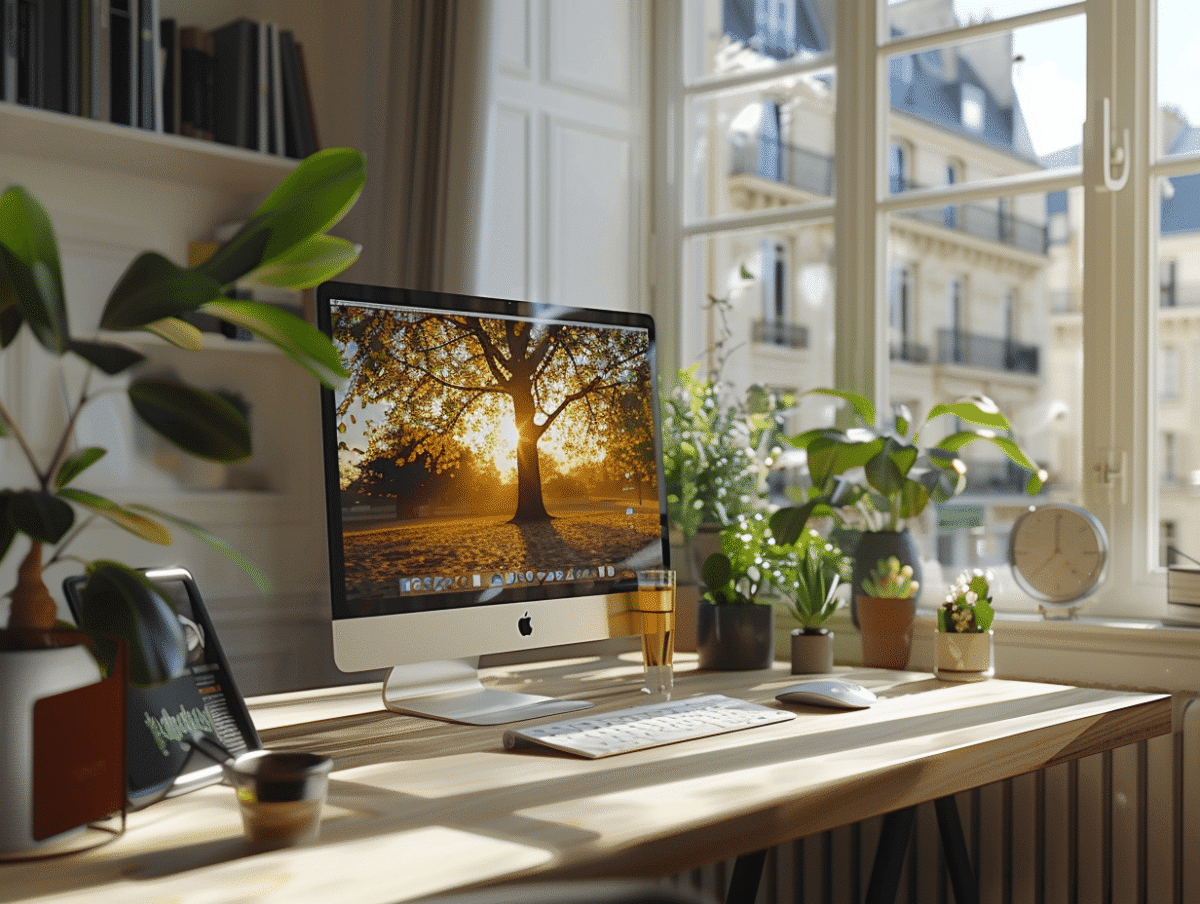
In the context of optimizing the user experience for French speakers on Mac, setting up an appropriate numeric keyboard is fundamentally important. Mac users who frequently work with numbers may encounter difficulties entering data quickly without a dedicated numeric keypad. Fortunately, macOS offers the ability to customize input settings to meet the specific needs of professionals and individuals. Setting up a French numeric keyboard allows for increased efficiency and ensures user comfort, especially in fields requiring precise and rapid numeric input.
Setting Up the French Numeric Keyboard on macOS
Adapting to the linguistic and practical specifics of each user is a priority of macOS Ventura, which supports various keyboard layouts, including the French numeric keyboard. Configuring your Mac to meet your numeric input expectations can be done in a few simple steps. Start the process by accessing the Keyboard Settings: open the Apple Menu, located in the upper left corner of the screen, and select System Settings where the customization settings are located.
Once in the settings interface, look for and select the option dedicated to the keyboard. Here, you have the option to select ‘French Numeric Keyboard’ from the designated menu. This action allows you to transform your typing experience, aligning it with the French keyboard layout, and enjoy the convenience of an integrated numeric keypad optimized for users of the language of Molière. Discover how to choose your MacBook according to your professional or personal needs, and ensure that the hardware configuration perfectly complements this software setting.
For customization enthusiasts, the Keyboard Settings also offer the option to configure keyboard shortcuts according to your preferences. Whether for quick access to specific functions or easy insertion of emojis and symbols, you have the power to shape a work environment that reflects you. For professionals requiring frequent and precise numeric entries or for users looking to optimize their productivity, these adjustments represent a significant lever of efficiency.
Customization and Advanced Use of the French Numeric Keyboard
Beyond simple configuration, Mac users benefit from options for advanced customization of their keyboard. In line with the adaptability promoted by macOS Ventura, it is easily conceivable to add alternative keyboard types such as Dvorak or Bépo via the system preferences. This diversity meets specific needs and allows for refining the ergonomics of input according to individual predispositions or desires. The voice dictation feature, accessible in the same settings, offers an alternative to traditional input methods, thereby enriching the user experience.
Wireless keyboards, such as those offered by well-known brands like Logitech or Corsair, typically connect via Bluetooth and provide increased flexibility. Their integration with Mac systems is seamless, and some models, particularly the Macbook Pro, even allow you to adjust the backlighting of the keys for optimal use in low-light conditions. Consider using bilingual stickers if you switch between different keyboard layouts, facilitating the transition and memorization of key locations.
Customization also extends to keyboard shortcuts. You can configure them for the quick insertion of emoji and symbols, a particularly useful feature when written communication aims to be expressive and nuanced. The Input Menu provides direct access to these elements, as well as to other languages, enhancing the versatile and adaptive nature of Macs. Use the Shift key or the Command key to trigger these shortcuts, and transform your keyboard into a dynamic and efficient input tool.